Advanced Email Options Explained
When creating emails, you have a number of options available to you upon clicking Options (the cog button at the top of the email screen).

When you click on Options, you will see the following options:
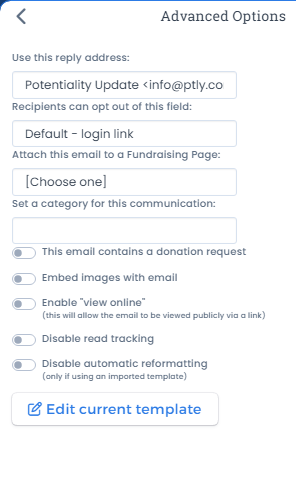
Please see below for an explanation of each of the options above:
Use this reply address: By default, this will show the email of the administrator logged in. However, if you would like to add additional emails in this drop down menu so that you can send emails on behalf of another person or via a shared community email then please raise a support ticket with the list of email addresses and aliases that you would like to add e.g. Community Network communitynetwork@email.com .
Recipients can opt out of this field: You can select which unsubscribe option would you like to offer to your email recipients. Show all preferences sends recipients to a page where they can choose all their email preferences at once.
Attach this email to a Fundraising Page: Links the email to a fundraising page, so its results are reported with that campaign.
Set a category for this communication: Groups the email with others of the same kind for reporting.
This email contains a donation request: Feeds into donor prospecting to let the database know that you have recently reached out to these email recipients for a donation (to avoid you reaching out to the same people all the time).
Embed images with email: In Outlook you usually need to give permission to download the images when you view the email. Embedding the images in the email means they don't need to be downloaded so they're visible right from the start. The con is that it makes the read stat very inaccurate.
Enable view online: View online allows the recipient to view an online version. Most useful for enewsletters.
Disable read tracking: Removes the ability to track reads.
Prevent tables from collapsing on mobile: Keeps tables in the email side by side on phones instead of stacking them.
Stack 2-column rows on mobile (responsive) and Stack news articles on mobile (responsive): On phones, side-by-side content is shown one above the other.
Disable automatic reformatting: Stops Potentiality adjusting the layout of the email. Only needed if you are using an imported template.
Edit Current Template: Opens the template editor so you can change the underlying template of the email, such as the header and footer.